Liner nøtes/Mobile
Want to add google-services.json into your GitHub Actions CI/CD pipeline?
featuredAre you building a project that uses Firebase or any other google services ? Using Firebase, one is required to add google-services.json when creating a project. This file contains configuration information that is specific to your app. Has a unique identifier required for communication with Google services. It allows your app to authenticate itself with google services. This means that the file should not be added in commits to the public.
Are you building a project that uses Firebase or any other google services ? Using Firebase, one is required to add google-services.json when creating a project. This file contains configuration information that is specific to your app. Has a unique identifier required for communication with Google services. It allows your app to authenticate itself with google services. This means that the file should not be added in commits to the public.
While using git, the file can be put inside a gitignore file to avoid exposing it to the public when we push commits.
In this article, we will learn how to add our google_services.json file in GitHub actions CI/CD for an Android project.
Creating a GitHub Action, we add a script which is a YAML file. We will call our file test.yml. We will use a script that runs test when a pull request has been opened.
name: Running Test

on:
  pull_request:
    types:
      - opened
    branches:
      - 'master'

jobs:
  test:
    name: Unit tests
    runs-on: ubuntu-latest

    steps:
      - uses: actions/checkout@v3

      - name: Set up JDK 17
        uses: actions/setup-java@v3
        with:
          distribution: 'temurin'
          java-version: 17
          cache: 'gradle'

      - name: Grand execute permissions to gradlew
        run: chmod +x gradlew

      - name: Run unit tests
        run: ./gradlew testDebug
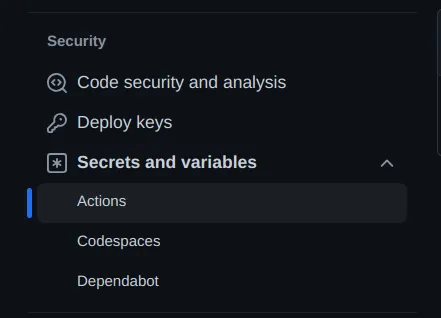
The above script will fail because the project will require a Google Json file. GitHub allows us to add these credentials to secrets that can be accessed in the script file. Go to the settings section of the repository.
The first step is to encode your google json file as base64 so that it can be easily stored in environment variables. You can run the script below in your terminal in Android Studio. Remember to match your path correctly.
base64 app/google_services.json
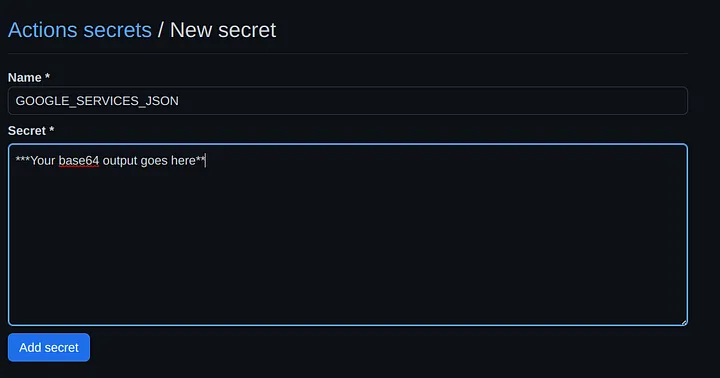
The script will generate a base64-encoded representation of the contents of the file. Add name as GOOGLE_SERVICES_JSON and copy the output in field provided below;
In our test.yml, before building gradle we will add the step below which adds our encoded file to an environment variable then it decodes it and adds it into our Action’s worker directory.
- name: Load Google Service file
        env:
          DATA: ${{ secrets.GOOGLE_SERVICES_JSON }}
        run: echo $DATA | base64 -di > app/google-services.json
base64 -di : decodes the encoded file and also removes newlines if there is any.
Our complete test.yml file will be as below:
name: Running Test

on:
  pull_request:
    types:
      - opened
    branches:
      - 'master'

jobs:
  test:
    name: Unit tests
    runs-on: ubuntu-latest

    steps:
      - uses: actions/checkout@v3

      - name: Set up JDK 17
        uses: actions/setup-java@v3
        with:
          distribution: 'temurin'
          java-version: 17
          cache: 'gradle'

      - name: Load Google Service file
        env:
          DATA: ${{ secrets.GOOGLE_SERVICES_JSON }}
        run: echo $DATA | base64 -di > app/google-services.json

      - name: Grand execute permissions to gradlew
        run: chmod +x gradlew

      - name: Run unit tests
        run: ./gradlew testDebug
Now we are good to push our commits and the workflow will run without any fails.